Blog
Notes from building the open-source wall on Vega OS, from a fresh Mac to a Fire TV Stick that stays awake all evening.
All posts
Newest first. New to Vega OS? Start at the bottom with Step 1: set up the tools, run the Virtual Device at 1080p, then put a real stick in developer mode.
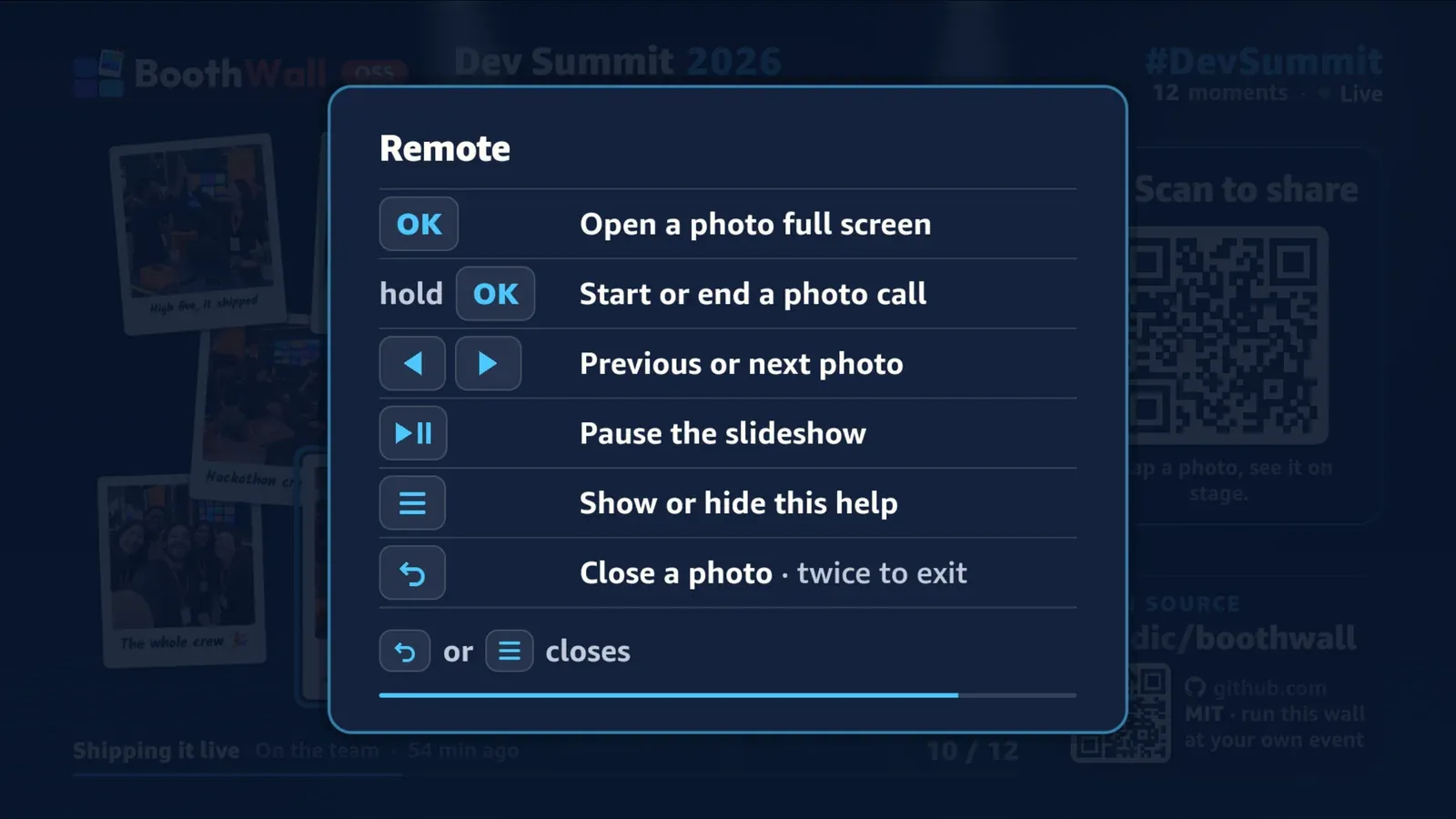
The Fire TV Home row shows a 16:9 crop of your square app icon
Vega OS takes one 512×512 icon for your app, and the Home row only shows a wide band from the middle of it. Here's the crop, the two icons that failed on a real TV, the one that worked, and two traps on the way.
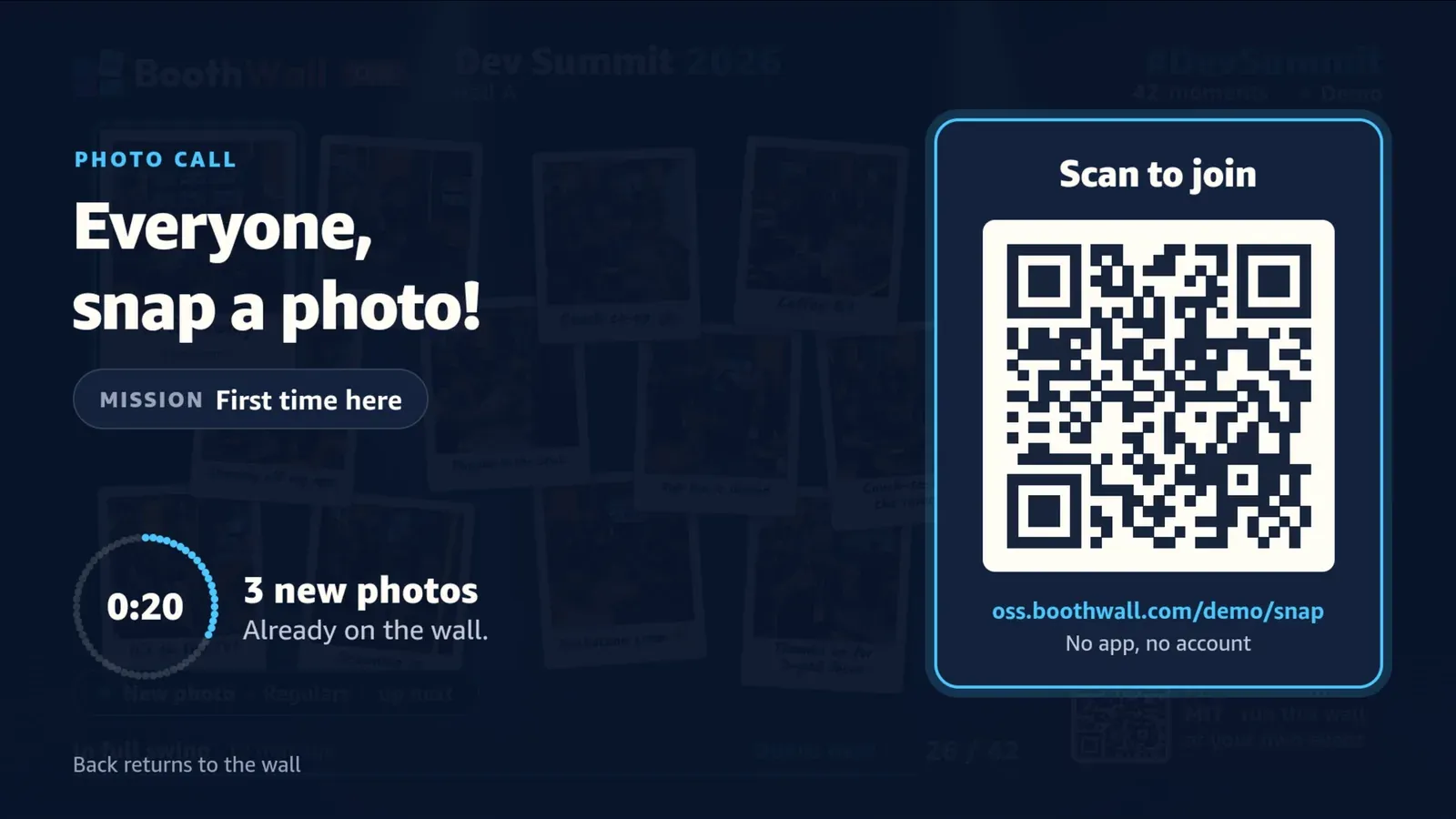
Testing a Vega app on a real Fire TV Stick without picking up the remote
Connect over Wi-Fi, install a release build, press keys and take 1080p screenshots, all from a terminal. Here's the loop we used to check our TV app on a Fire TV Stick, and what it can't test for you.
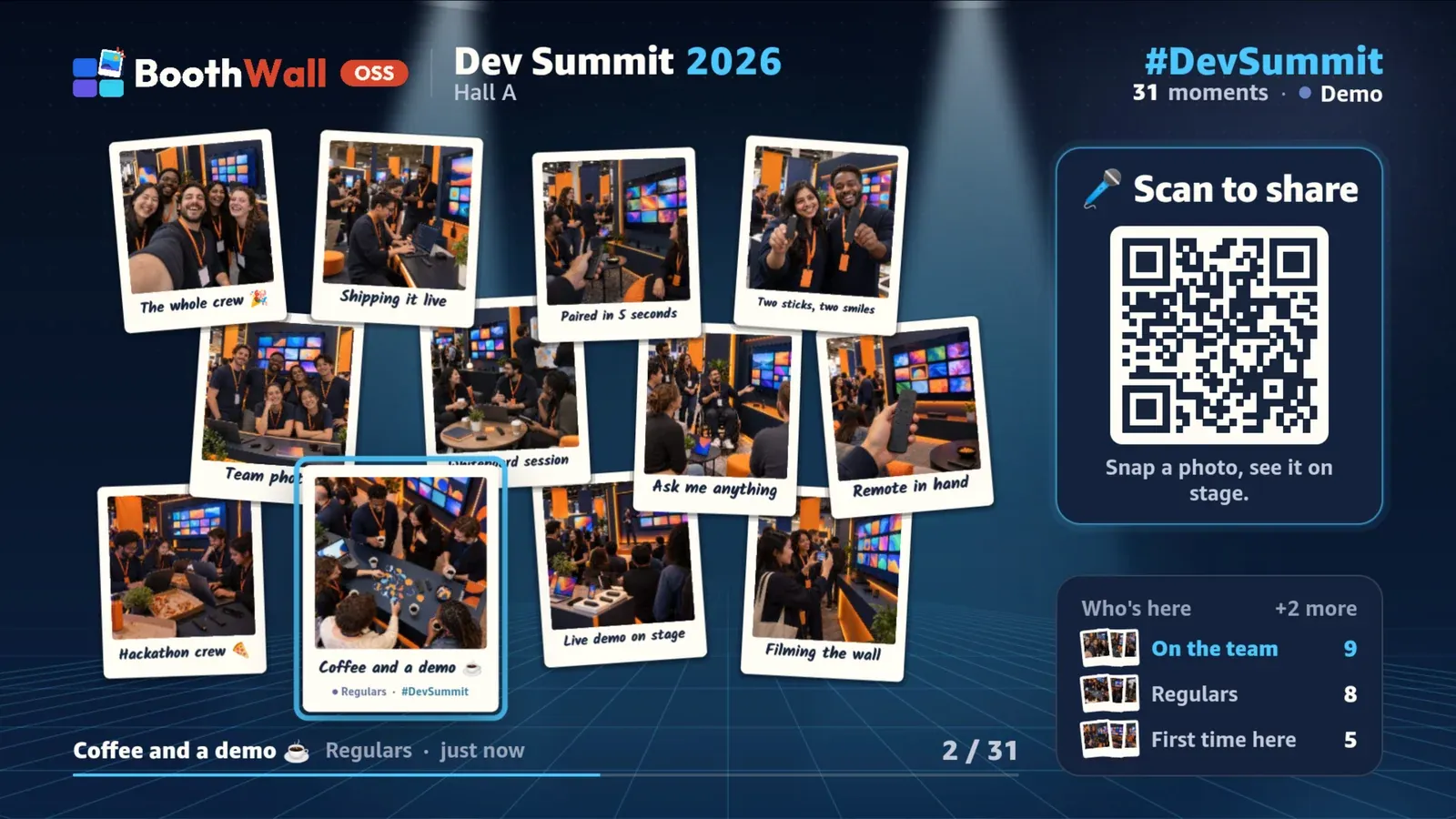
Keeping a Fire TV awake: how a live photo wall holds off the Vega OS screensaver
Vega OS has no keep-awake API, and its screensaver covers any app after five minutes without a key press. Here's what it actually listens to, what didn't work, and the small, honest workaround our wall ships.
Turning on developer mode on a Vega OS Fire TV Stick
Before you can run your own app on a Fire TV Stick with Vega OS, the stick has to trust your developer account. It takes about ten minutes, a hidden menu and one 6-digit code. Here's the whole walk-through.
Running the Vega Virtual Device at 1080p, and why your layout looks doubled
You don't need a Fire TV on your desk to build for Vega OS. The Virtual Device runs on a Mac, at full HD if you ask it nicely. Here's how we start it, drive it and read its logs.
Setting up a Mac for Vega OS, minus the head-scratching
Installing the Vega SDK, getting the CLI on your path, using pnpm in a monorepo and making your first build. The steps are short; the surprises are what this post is for.