Running the Vega Virtual Device at 1080p, and why your layout looks doubled
On this page
A lot of our TV app was built without a Fire TV on the desk. Amazon’s Vega Virtual Device runs Vega OS on a Mac, and once you’ve got used to its quirks it’s a pleasant way to work: no HDMI cables, no hunting for the stick’s IP address, and a remote you can click.
Start it at 1080p
A TV app should be judged at the size people will see it, so we always start the Virtual Device at full HD:
vega virtual-device start --display-res=1920,1080--display-res takes “width,height” and has no value by default, so leave it out and you get whatever size the device picks. The start command waits 60 seconds for the device to come up before it gives up (--timeout changes that), and vega virtual-device status tells you whether one is already running.
And when we want a clean slate (new build, stuck state, odd focus), we stop it, start it again and reinstall the app:
vega virtual-device stop
vega virtual-device start --display-res=1920,1080
vega run-app <your .vpkg> <your component id> -d VirtualDevice
In our repo those are pnpm tv:vvd:start:1080 and pnpm tv:vvd:restart:1080. The restart script stops the device quietly, carries on if none was running, and reinstalls the app at the end.
Install and run your app
The Virtual Device on an Apple Silicon Mac runs the aarch64 build (an Intel Mac takes x86_64), so build the debug package and launch it:
react-native build-vega --build-type Debug
vega run-app build/aarch64-debug/tv_aarch64.vpkg com.boothwall.app.main -d VirtualDevice
The package is named after your package.json name, so yours will be called something other than tv_aarch64.vpkg.
For BoothWall, pnpm try does all of it in one go. It starts the API and the web app on your machine, points the TV app’s config at them, builds the debug package, installs it, and then closes and opens the app once more. (With no Virtual Device running, it prints the two commands to run instead.) That second launch isn’t a typo: Vega only sends media keys to an app from its second launch after a fresh install, so the script gets that out of the way. When you stop it with Ctrl+C, it puts the config back, unless you’ve edited the file in the meantime, in which case it leaves your version alone.
Reaching your Mac from the Virtual Device
The Virtual Device sees your Mac at 10.0.2.2. Our first try at pointing the TV app at a local API ended on our own error screen: “Can’t reach the wall: 10.0.2.2:8787, Attempt 11”.
The API was running. The catch is that 10.0.2.2 maps to the Mac’s IPv4 loopback, and on macOS a dev server listening on localhost often binds only the IPv6 address [::1]. lsof showed ours doing exactly that. Bind to 0.0.0.0 instead (that’s what pnpm demo --lan does) or use the Mac’s network address, which also works for a real Stick and for phones on the same Wi-Fi.
While we were at it we checked plain http://. Amazon documents a cleartext policy for WebView, and we couldn’t find anything about the rest. On SDK 0.24, React Native’s fetch and WebSocket over http:// work.
Why everything looks twice as big
A Vega TV app lays out on a 960×540 dp canvas, and a 1080p screen draws it at 2x. If you design for 1920×1080 pixels, everything comes out doubled and half your wall falls off the edge.
Design for 960×540 and let the TV scale it up. Your text sizes, card sizes and spacing will suddenly look like the mock-ups.
Driving it without the on-screen remote
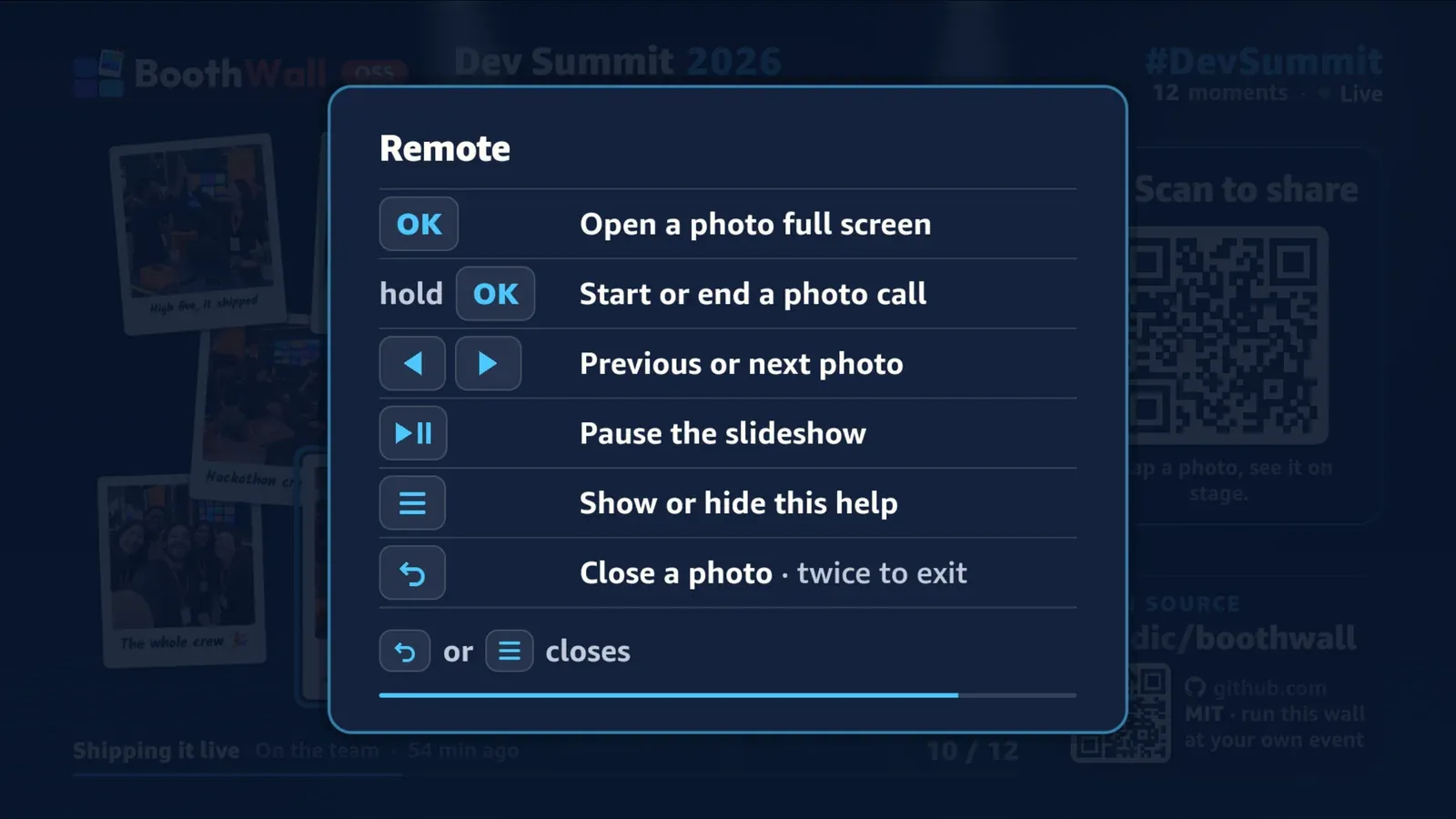
The Virtual Device has its own on-screen remote, which is fine for a few clicks. When you’re testing focus order for the fiftieth time, it’s nicer to press keys from the terminal:
vega device run-cmd --device VirtualDevice --command 'inputd-cli button_press KEY_RIGHT'It takes KEY_ENTER, KEY_BACK, KEY_PLAYPAUSE and the arrows too. We wrapped it in a tiny browser page with big buttons so we could steer the wall from a laptop across the room. It’s pnpm remote in our repo: it serves the page on port 4400, the arrows, Enter, Backspace and Space on your keyboard work as well, and VEGA_DEVICE=<serial> points it at a real Stick instead. The whole thing is one file.
Two gotchas while you’re at it. Every press arrives twice: useTVEventHandler reports a key down and then a key up, so act on only one of them or each press moves focus two steps. And on a screen with nothing focusable, the Virtual Device’s OK button can skip your global handler entirely. An invisible, always-focused Pressable with hasTVPreferredFocus catches it.
Holding a button is yours to work out. Add long to the command (button_press KEY_ENTER long) and the hook sees one key down after another for as long as the button is held, then a single key up, with no long-press event. We time it from the first key down and call anything from 600 ms a long press. Media keys are stranger still: Play/Pause never reaches useTVEventHandler at all. That story belongs to the screensaver post, because the fix turned out to be the same audio session.
Reading the logs
Two commands we keep open in a terminal tab:
vega device start-log-stream --device VirtualDevice
vega device running-apps
Your JavaScript console.log lines do show up in that stream in a debug build, as lines tagged [KeplerScript-JavaScript]. We got this wrong at first: for a while our own notes, and an earlier version of this post, said they only went to React Native DevTools. They don’t. Two more things make grepping easier once you know: every app line appears twice, and a handful of messages aren’t yours. UISoundManager and AudioSystemService errors come from the Virtual Device having no audio, and hasViewManagerConfig('RCTSafeAreaView') is not implemented comes from the runtime. We silence those exact messages with LogBox.ignoreLogs, not ignoreAllLogs.
For breakpoints you still want DevTools. Run Metro, forward port 8081 with vega device start-port-forwarding -p 8081 --forward false, and attach to the target listed at http://localhost:8081/json/list. Forwarding is same-port only, so if another Metro or Expo server already owns 8081, stop it first.
Screenshots and numbers
The CLI has no screenshot command. On the Virtual Device we capture its window from macOS: osascript gives us the window’s position and size, and screencapture -x -R x,y,w,h grabs just that region. We tried Appium’s screenshot call, and in our tests it changed what the window showed, so it’s out of our toolbox for anything we keep as evidence.
The performance tools do run here. On 18 October we measured a release build against a live local wall. kpi-visualizer --kpi cool-start-latency --iterations 5 gave a mean of 146.8 ms to first frame and 339.6 ms to fully drawn; the second number only exists because the app calls performance.reportFullyDrawn() when the wall first shows its feed. A 35-minute memory-monitor run went from 178 MiB to a peak of 241 MiB while the image cache filled, then grew by only about 0.14 MiB a minute. Those are Virtual Device numbers on a Mac. A Stick has four small cores and 1 GB of RAM, so treat them as a way to compare your own builds, not a promise.
What the Virtual Device won’t tell you
| Virtual Device (our Mac) | Fire TV Stick (ours) | |
|---|---|---|
| Build | aarch64 |
armv7 |
| OS reported | 1.2 | Vega OS 2.0 |
| Reaching it | -d VirtualDevice |
vda connect <ip>:5555, then -d <ip>:5555 |
| Screenshots | macOS window capture | gwsi-tool-screenshooter2; the Home screen comes back green |
| Sound and voice | No audio, no microphone | A voice remote; “Alexa, pause” and “next” work, “play” not yet |
| Smoothness | Fluidity numbers need Appium and only mean something on a stick | Judged by eye on the TV |
When the installer stops halfway
If vega sdk list-installed tells you no SDK is installed even though the Virtual Device starts, the SDK download was interrupted and only the Virtual Device made it. vega sdk install <version> --non-interactive finishes the job.
The Virtual Device gets you a long way. For the last mile (real memory pressure, the real screensaver, the real remote) you’ll want an actual stick, and turning on developer mode is the first step.
Just want the wall at your event? BoothWall Cloud is coming soon to run it for you. Get notified