Setting up a Mac for Vega OS, minus the head-scratching
On this page
- Install the SDK and check it really finished
- Put the CLI on your path
- It’s build-vega, not build-kepler
- What the build log says that you can ignore
- pnpm works, if node_modules is flat
- Fonts load by file name
- Declare the services you use
- “Package is invalid” usually means the icon
- Things from our first week that no longer bite
- If you’re setting up tomorrow
- Next steps
Setting up for Vega OS is mostly pleasant. You install an SDK, get a CLI, and build a React Native app that runs on a Fire TV. But a handful of small surprises cost us more time than the setup itself, so here they are in one place, roughly in the order you’ll meet them.
We work on Apple Silicon Macs with Node 24 and pnpm 10, building against Vega SDK 0.24 and React Native 0.83. To be exact, vega --version on ours prints:
Active SDK Version: 0.24.12112
Vega CLI Version: 1.4.2
Install the SDK and check it really finished
Amazon’s installer (get_vvm.sh, linked from the Vega SDK docs) downloads the SDK and the Virtual Device. It can stop halfway without much fuss: the Virtual Device is there, the SDK isn’t. That happened to us in our first week.
So after installing, check:
vega sdk list-installedIf it says “No SDK versions installed”, finish the job by hand:
vega sdk install <version> --non-interactivePut the CLI on your path
The installer doesn’t always create the ~/vega/env file the docs mention. Ours didn’t, on the same run that skipped the SDK. You don’t need it. One line in your shell profile is enough:
export PATH="$HOME/vega/bin:$PATH"Our own scripts don’t lean on the PATH at all. The laptop remote and pnpm try look for ~/vega/bin/vega first and only fall back to whatever vega the shell finds, so they still work on a machine where that line is missing.
It’s build-vega, not build-kepler
Vega was called Kepler inside Amazon for a while, and some older samples still run react-native build-kepler. The current template uses:
react-native build-vega --build-type Debug
react-native build-vega --build-type Release
You get one .vpkg per architecture: armv7 for Fire TV Sticks, aarch64 for the Virtual Device on Apple Silicon and x86_64 for Intel Macs. The file takes its name from your package.json name, so a package called @scope/tv builds tv_aarch64.vpkg. A debug build makes all three at once (the log announces a “Build Plan (3 targets)”), and for our TV app it takes about 16 seconds.
The JavaScript is bundled into the .vpkg. Metro on its own doesn’t update an app that’s already installed, so after a change you build and install again. Early on, our code changes didn’t show up on the device for exactly that reason.
What the build log says that you can ignore
The first clean build looks worse than it is. With Amazon’s own ports of AsyncStorage and the W3C media player installed, the build prints this, twice:
ERROR
Validation errors found while scanning node_modules for this application:
Library @amazon-devices/react-native-async-storage__async-storage is not properly configured. The version is set to 2.1.9000000000-rn-83 but that value is not part of it's 'kepler-compatibility.json' file. This library must be updated to correct the error!
and the same for @amazon-devices/react-native-w3cmedia at 2.3.4-rn-83. The build carries on, finishes, and the manifest check further down says manifest validation found 0 errors. Those are the -rn-83 versions in our package.json, and the app runs fine with them. We left them alone.
You’ll also see four info lines about the network module, each saying it “MAY require” a privilege such as com.amazon.network.privilege.net-info, and each ending with “Disregard this warning if you do not need this privilege”. We haven’t needed any of them: plain fetch and WebSocket work without.
One more thing the build does on its own: it edits your manifest. With the W3C media package installed, every build appended a keplercrypto entry to manifest.toml, so the working tree was dirty after each build. We committed the entry, with a comment saying where it comes from, and the tree has stayed clean since.
pnpm works, if node_modules is flat
Vega’s templates assume npm or Yarn, and Vega Studio doesn’t support pnpm. The CLI is happy with it, though. Metro, autolinking and the build tools just expect a flat node_modules, so in .npmrc:
node-linker=hoistedand point the build at pnpm when you run it:
NPM_EXECPATH=$(which pnpm) react-native build-vega --build-type DebugWe put that variable in the TV app’s own build:debug and build:release scripts, so nobody has to remember it: pnpm tv:build:debug from the repo root does the right thing. Our .npmrc says why it hoists in a two-line comment.
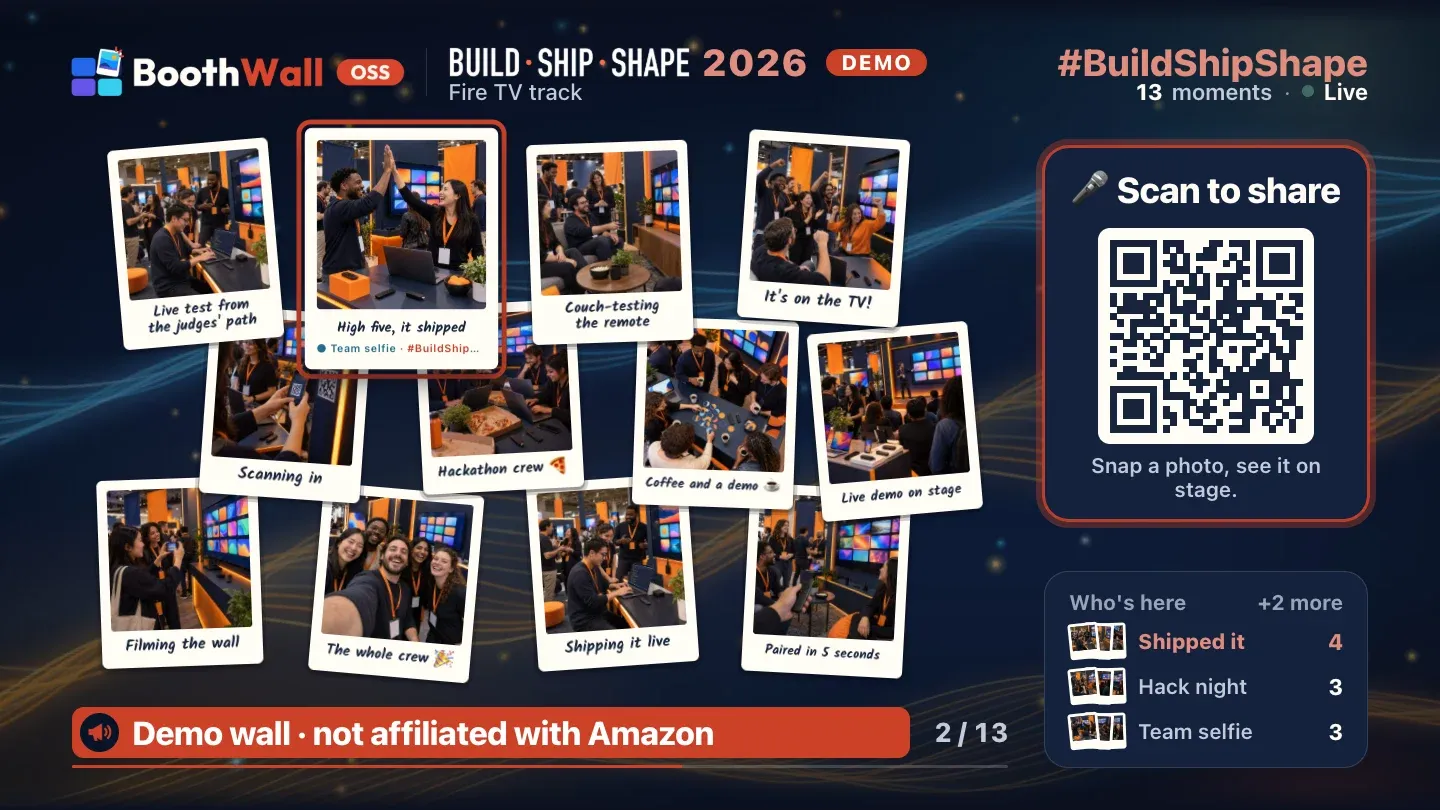
That’s what lets our TV app live in the same monorepo as the web wall, the phone page and the API, sharing one wall package between the TV and the browser.
Fonts load by file name
Custom fonts are refreshingly simple: put the .ttf files in assets/fonts/ and set fontFamily in a style. No loader, no manifest entry.
The catch is that the file name has to match the family name. Kalam-Bold.ttf worked for fontFamily: "Kalam". PermanentMarker-Regular.ttf did not work for "Permanent Marker"; the text silently fell back to the system font. Renamed to Permanent Marker.ttf, space and all, it loaded. Our fonts folder now holds Caveat.ttf, Gochi Hand.ttf, Kalam-Bold.ttf, Permanent Marker.ttf and Special Elite.ttf, which looks odd in a terminal and works. Handwriting fonts also draw a little thinner than in a browser, so our wall thickens them with a same-colour text shadow nudged sideways.
Declare the services you use
Some things quietly don’t work until the manifest asks for them. In our first week, remote key events didn’t arrive at all until we added com.amazon.inputd.service, and nothing said why. When we re-ran that test on SDK 0.24.12112 on 18 October, the D-pad worked without the entry, so it may have been fixed since. We kept the declaration anyway; it costs two lines.
Networking works without a declaration for now, but the device log warns that it only gets through on a temporary exception list. So we declare com.amazon.network.service and the /com.amazon.kepler.net.net_manager@INetManager module as well. While you’re in [package], set build-number = 1, which clears a build_number is 0 warning.
“Package is invalid” usually means the icon
This one cost us real time. In our first week, the manifest said icon = "@image/app_icon", without the .png. When we reproduced it on 18 October, the build noticed, and kept going:
Warning: Icon file not found: manifest declares icon '@image/app_icon' but '.../assets/image/app_icon' does not exist.
icon validation is not enforced, continuing packaging ...
The install then failed with nothing more specific than:
Vega operation FAILED due to an irrecoverable error: Failed to install build/aarch64-debug/tv_aarch64.vpkg on device emulator-5554: Incomplete: Installing/Updating '/tmp/tv_aarch64.vpkg' ...error (Package is invalid)Back then our title also had a × in it, and we blamed that as well, fixed both, and wrote “keep the title ASCII” in our notes. On the 18 October re-run, a title with a × built, installed and showed up fine. The icon path was the whole problem. Write icon = "@image/app_icon.png", which points at assets/image/app_icon.png, and if an install ever says “Package is invalid”, look at the icon first. (What the Fire TV then does with that icon is its own story.)
Things from our first week that no longer bite
Older notes, ours included, mention a couple of fixes you may not need on SDK 0.24. zod v4 needed @babel/plugin-transform-export-namespace-from to bundle; on 0.24.12112 the bundle built and the wall ran without it. And the Vega Jest preset’s Dimensions mock used to crash components that call useWindowDimensions on unmount; on the re-run, our tests passed without a manual mock. We kept the Babel plugin, since it does no harm, but don’t spend an afternoon adding either fix before you’ve seen the problem yourself.
If you’re setting up tomorrow
- Run the installer, then
vega sdk list-installedbefore anything else. - Add
~/vega/binto your PATH yourself. - With pnpm, set
node-linker=hoistedandNPM_EXECPATHbefore the first build. - Give the manifest icon its
.png. - Read past the “ERROR” lines in the first build log to the end.
Next steps
With a build in hand you can run it on the Virtual Device at 1080p or put a real Fire TV Stick in developer mode. And when your app needs to stay on screen for hours, you’ll want to read about keeping the screensaver away. The short version of everything here is in our field notes on building for Vega OS.
Just want the wall at your event? BoothWall Cloud is coming soon to run it for you. Get notified