Testing a Vega app on a real Fire TV Stick without picking up the remote
On this page
The Virtual Device is where most of our TV app gets built, but some things only show up on a real Fire TV Stick. On 19 October we spent a session checking our app on one: a Stick with Vega OS 2.0, in developer mode, on the same Wi-Fi as the Mac. Instead of picking up the remote, we pressed keys from the terminal, took screenshots on the Stick and looked at them on the laptop.
Connect over Wi-Fi
The SDK ships a tool called vda for the connection. It isn’t on your PATH; ours was here:
~/vega/sdk/vega-sdk/main/<version>/bin/tools/vda connect <stick-ip>:5555If you’d rather not type the version, vega which vda prints where the CLI keeps its own copy, and earlier sessions of ours connected with $(vega which vda) connect <stick-ip>:5555.
After that, vega device list shows the Stick with its serial, something like A3I4VPCZR2XR3U. From then on we passed -d <stick-ip>:5555 to every command.
The address is the weak spot. The evening before this session, the Stick didn’t answer at the address earlier sessions had used, and a scan of the network found only a Fire OS stick. The next morning it was back at the same address. We never found out why. If a command suddenly can’t find your Stick, check that it still answers at its address before you suspect the build.
Install and run a release build
The Stick is armv7, while the Virtual Device on an Apple Silicon Mac is aarch64, so the Stick needs its own build. We built the armv7 release and ran it:
vega run-app build/armv7-release/tv_armv7.vpkg com.boothwall.app.main -d <stick-ip>:5555The vega device commands cover the rest:
vega device installed-apps -d <stick-ip>:5555
vega device launch-app -d <stick-ip>:5555 --appName com.boothwall.app.main
vega device uninstall-app -d <stick-ip>:5555 --appName com.boothwall.app.main
Press keys from the terminal
inputd-cli on the device presses remote buttons for you:
vega device run-cmd -d <stick-ip>:5555 --command "inputd-cli button_press KEY_PLAYPAUSE short"Swap short for long to hold a button, which is how we tested holding OK (KEY_ENTER long). We also used KEY_MENU, KEY_BACK and KEY_HOME. The same commands work on the Virtual Device with -d VirtualDevice.
Take a screenshot on the Stick
The CLI doesn’t have a screenshot command (vega device --help lists two dozen subcommands, none of them for that), but Vega has a tool on the device. Run it, then copy the file back:
vega device run-cmd -d <stick-ip>:5555 --command "gwsi-tool-screenshooter2 /tmp/s.png"
vega device copy-from -d <stick-ip>:5555 --source /tmp/s.png --destination shot.png
It prints “Screenshot saved”, and you get a 1920×1080 PNG of whatever your app is drawing. The file goes to /tmp for a reason: Amazon’s developer mode guide says the default shell only lets you into /tmp. There’s an older tool, gwsi-tool-screenshooter (without the 2), which hung for us. In our first week we ran it with timeout 25 in front, and later stopped using it.
One gap: the Home screen comes back as solid green. For anything on the launcher, such as your app’s tile, you’ll need a phone camera.
The loop
We wrapped both in two small shell functions:
STICK="192.168.1.23:5555" # your Stick's IP

press() {
  vega device run-cmd -d "$STICK" --command "inputd-cli button_press $1 ${2:-short}"
}

shot() {
  timeout 40 vega device run-cmd -d "$STICK" --command "rm -f /tmp/s.png; timeout 20 gwsi-tool-screenshooter2 /tmp/s.png"
  timeout 40 vega device copy-from -d "$STICK" --source /tmp/s.png --destination "$1"
}
The rm -f is there so a capture that fails can’t quietly hand you the previous screenshot under a new name. The timeouts, one on the Stick and one on the Mac, mean a hung call costs 40 seconds instead of the rest of the session. macOS doesn’t come with timeout; ours is from Homebrew’s coreutils. Our own version of shot also writes a 960-pixel-wide JPEG next to each PNG (magick shot.png -resize 960x shot-960.jpg), which is easier to flip through on a laptop.
Every check after that went the same way: press a key, wait a second or two, take a screenshot, look at it. By the end of the day the folder held 25 full-size screenshots, most of them numbered in the order we took them.
press KEY_PLAYPAUSE
sleep 2
shot 01-paused.png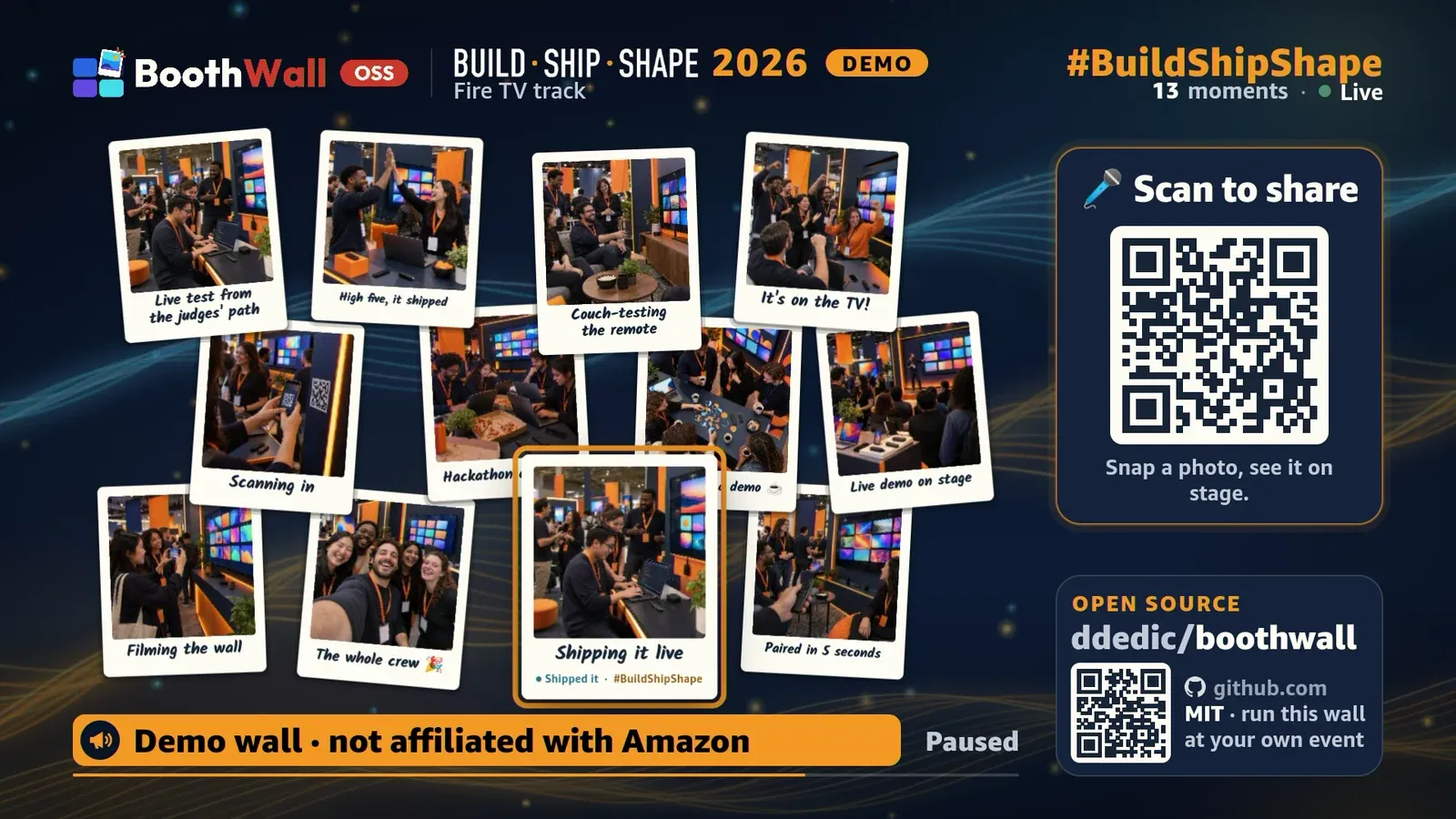
With that loop we checked:
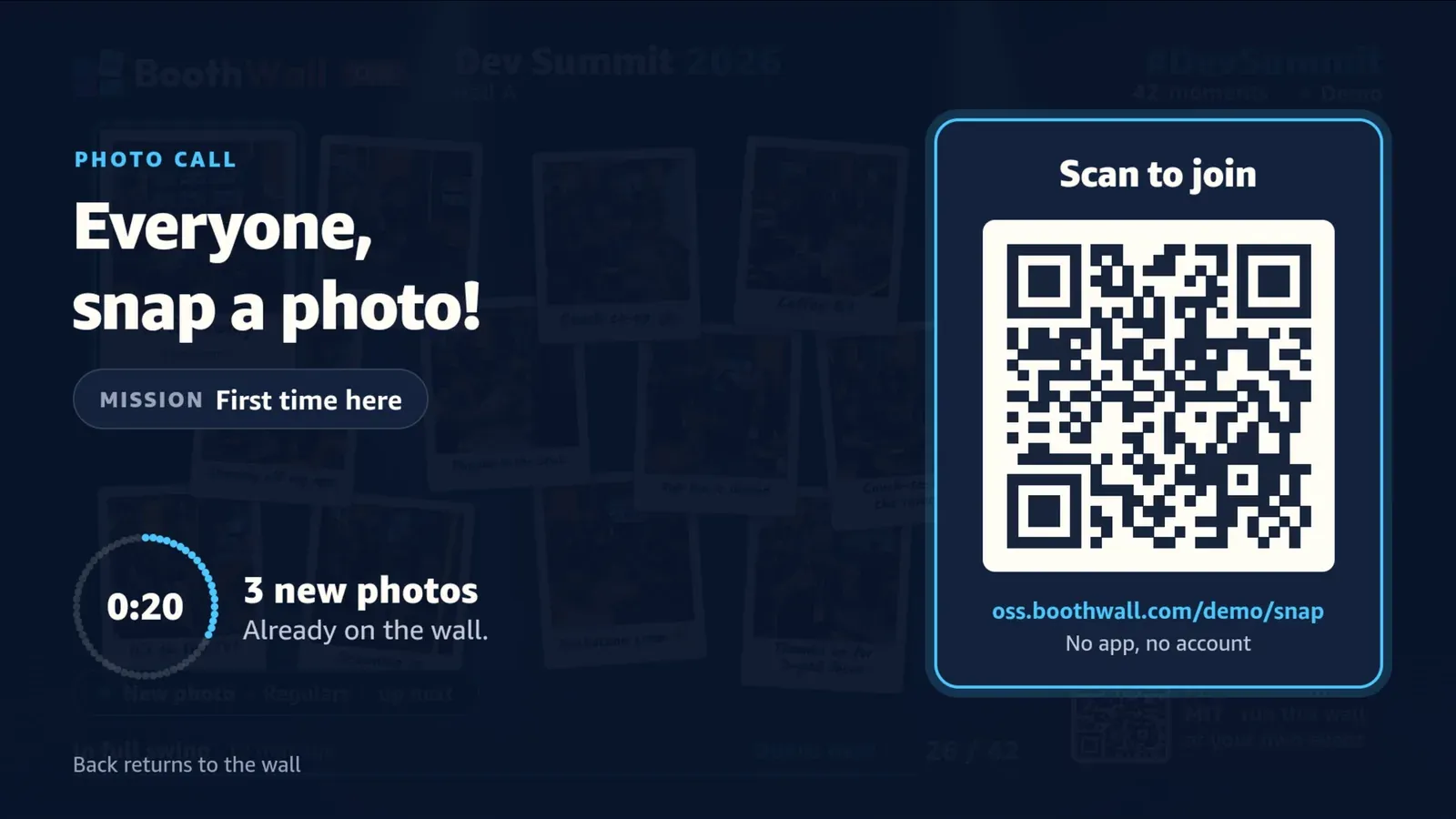
- Play/Pause pauses the wall, and “Paused” shows up on screen.
- Holding OK starts a one-minute photo call.
- Back, and where it lands.
- The Menu key brings up the remote help.
- A Control panel request goes through our API and reaches the TV.
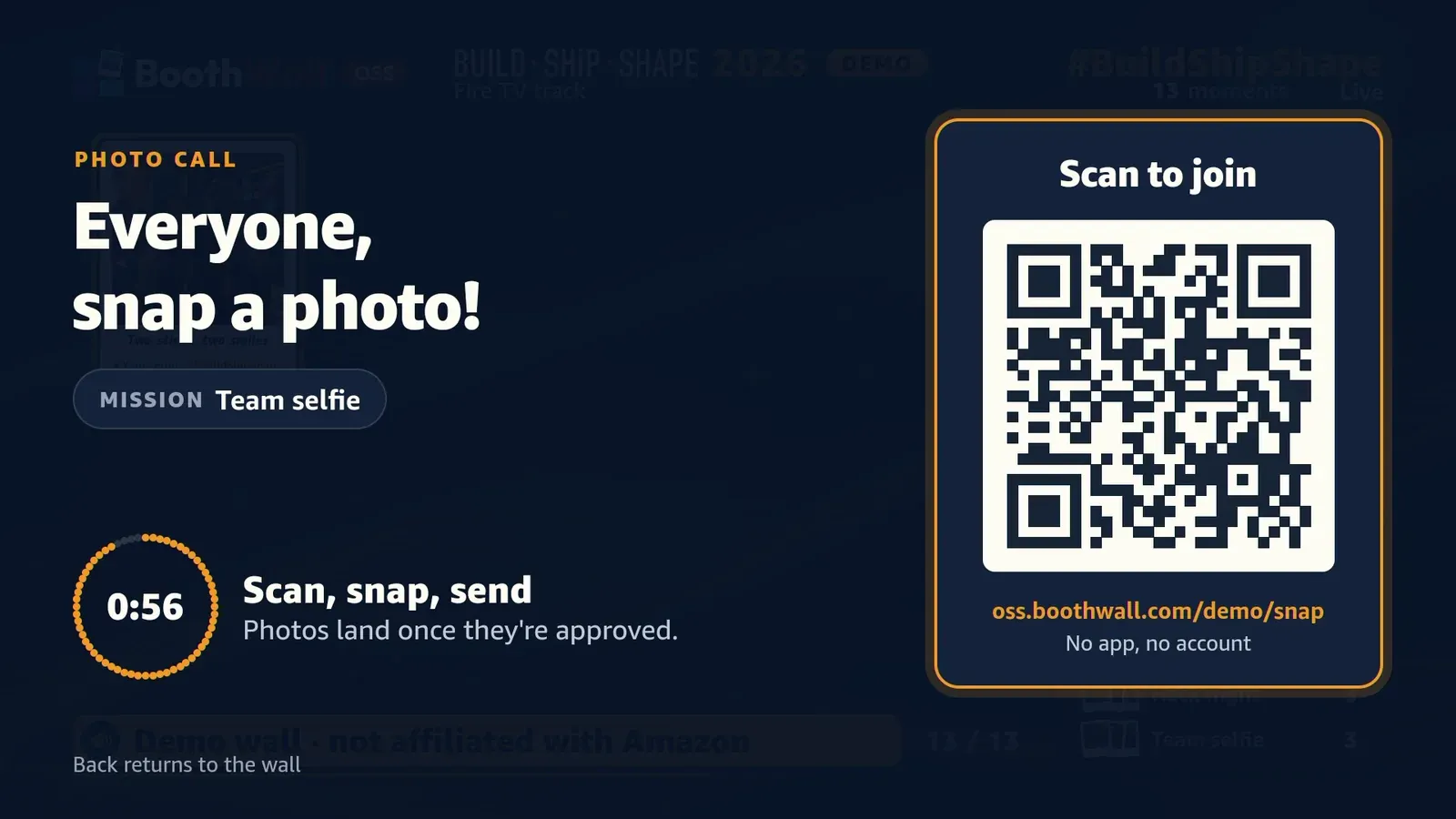
Photo call
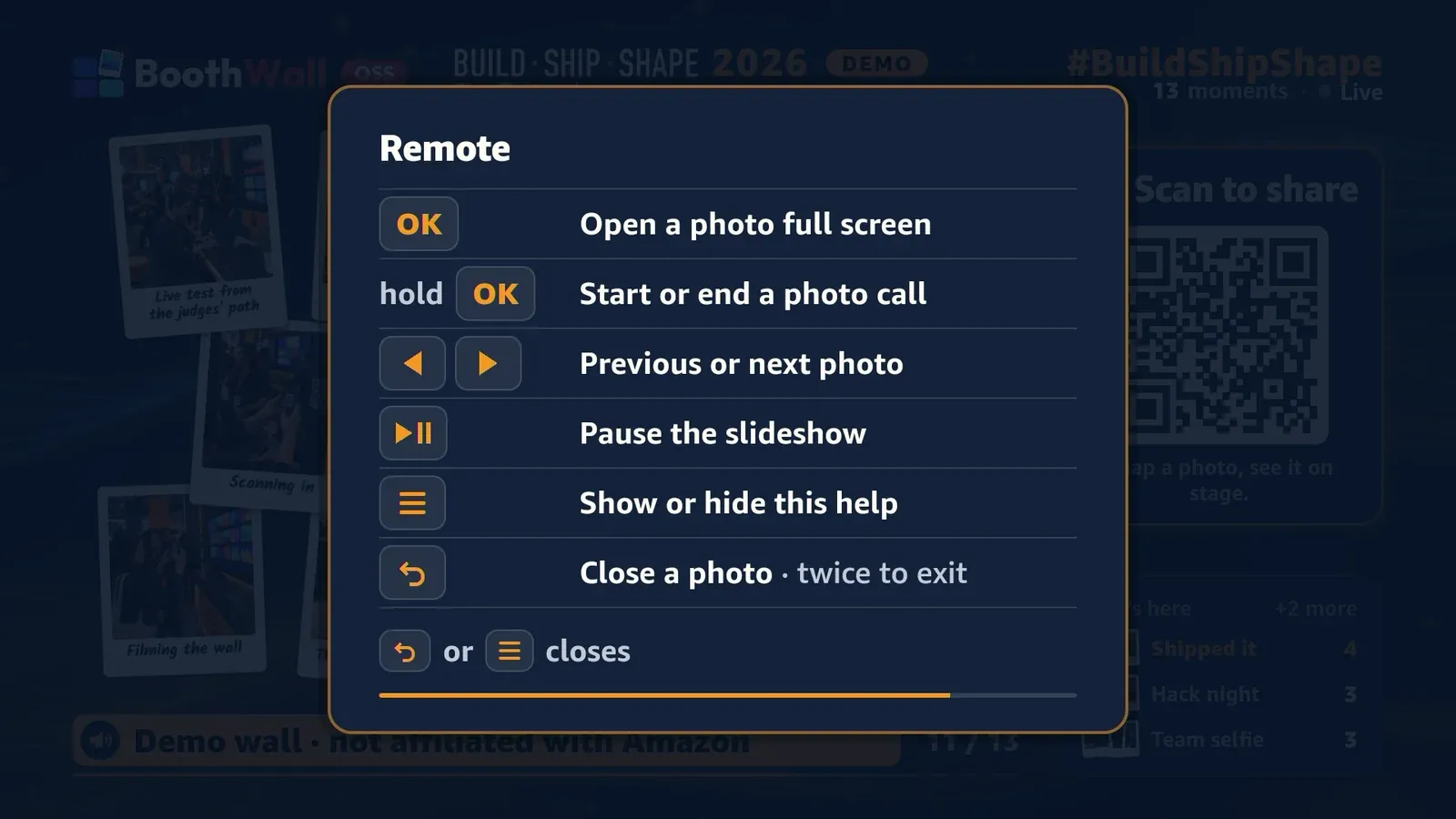
Remote help
For that last one we sent the same request the Control panel sends, from a small script on the laptop, then took a screenshot on the Stick. That way we saw the change on the TV itself, not just the API’s answer.
What this doesn’t test
Injected key presses aren’t the real remote, and they don’t cover Alexa voice commands. Both still need a person sitting in front of the TV.
Smoothness is the other gap. The developer shell can’t see the app’s CPU use, and SDK 0.24 has no command that reports frame rate on a Stick. Amazon’s fluidity measurement needs Appium, which we hadn’t set up. So when we toned down the wall’s background motion for the Stick, the check was a person watching the TV and saying it looked smooth enough, which it did. That’s an opinion, not a number, and we say so.
One more thing, which we saw once: after a restart of the Stick, our side-loaded apps were gone and we had to install them again. If your app is missing after a restart, vega device installed-apps shows what’s still installed.
Where it fits
None of this replaces sitting in front of the TV. It means you only need to sit there for the remote, the voice and the look of the Home row. For the rest, you can keep the Stick plugged in behind the TV and work from the laptop, with a screenshot of every step to look back at afterwards.
If you’re still on the Virtual Device, running it at 1080p has the same key commands for that side.
Just want the wall at your event? BoothWall Cloud is coming soon to run it for you. Get notified